3.5.3.4.3. Customize Menu for page/ image Actions (OnMouseOver)
Since v1.0.3.72
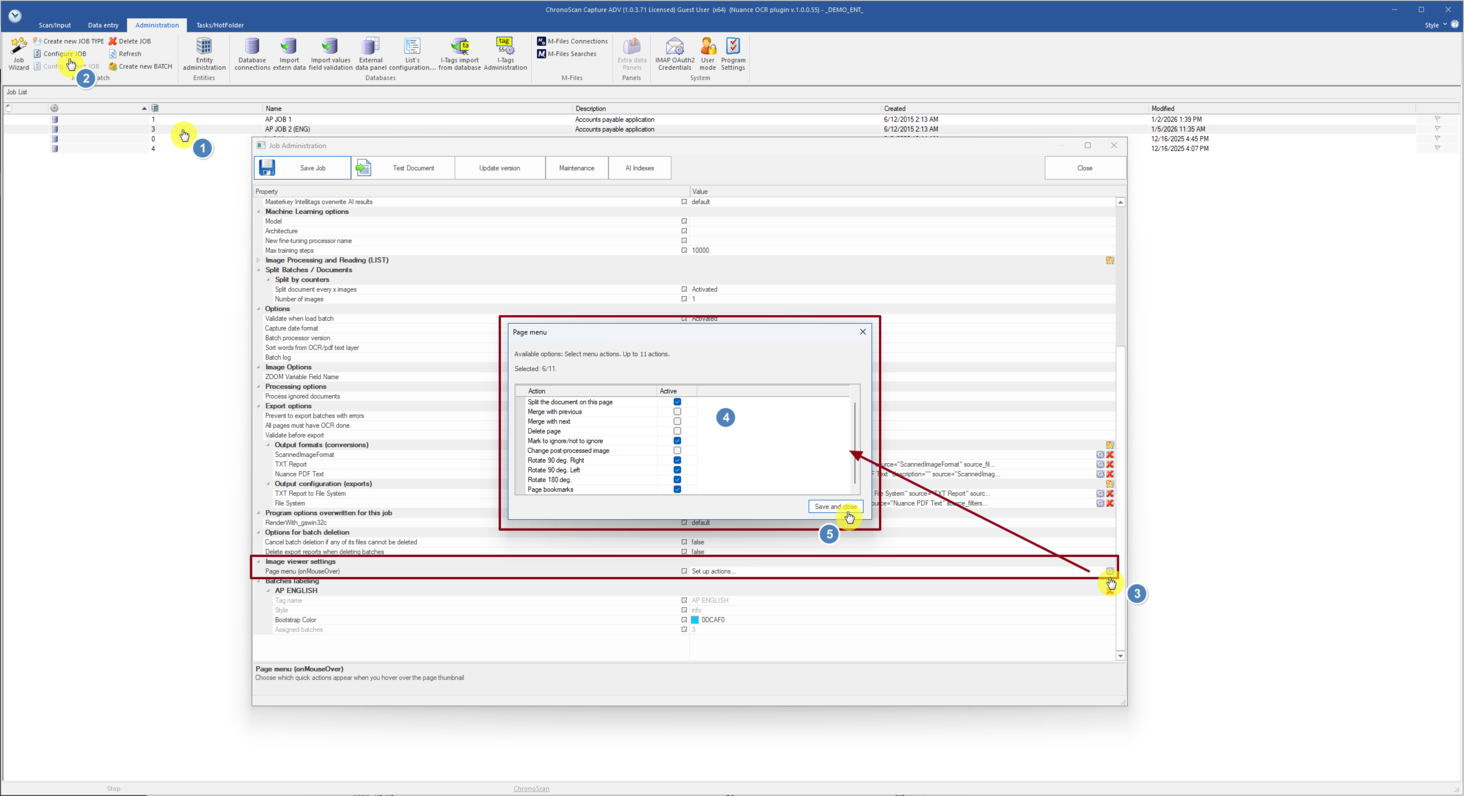
1. Accessing the configuration menu
To customize which quick actions appear in the page menu (OnMouseOver):
-
Go to the Administration tab.
-
Open Job configuration (1).
-
In the job settings grid, scroll to Image viewer settings.
-
Click the gear icon next to "Page menu (onMouseOver)" (3).
This opens the Page menu configuration dialog (4), where you can select which actions are available. Maximum: Up to 11 actions. Click "Save actions" when finished (5). The menu updates instantly for all pages in the job.
2. Available actions
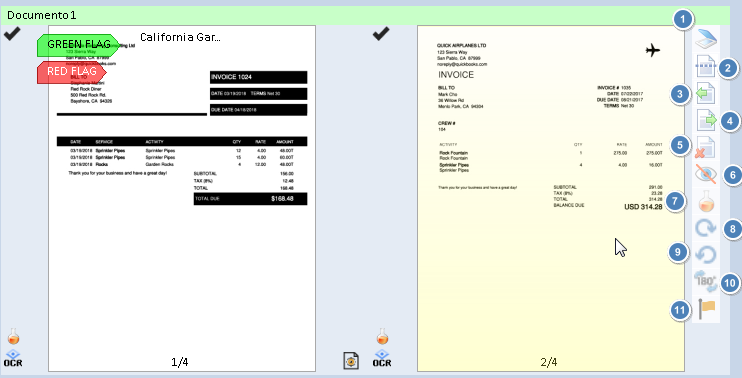
Each action shows as an icon in the vertical quick menu on the right of each page:
Actions available:
1. Insert pages Adds one or more new pages at this position.
2. Split the document on this page (if not first) Splits the current document starting from this page.
3. Merge with previous Joins the current page with the previous one.
4. Merge with next Joins the current page with the next one.
5. Delete page Removes the current page from the document.
6. Mark to ignore/not to ignore Flags/unflags page as ignored in processing.
7. Change post-processed image (if post-processed) Change or pick an alternate post-processed image.
8. Rotate 90 deg. Right Rotates this page 90º clockwise.
9. Rotate 90 deg. Left Rotates this page 90º counterclockwise.
10. Rotate 180 deg. Rotates this page 180º.
11. Page bookmarks Edit and manage custom flags (bookmarks) for this page.
Each icon only shows in the menu if it is enabled for this job and the page context matches (e.g. "Split document" only on non-first pages, "Change post-processed image" only if available).
3. Example: Customized quick action menu
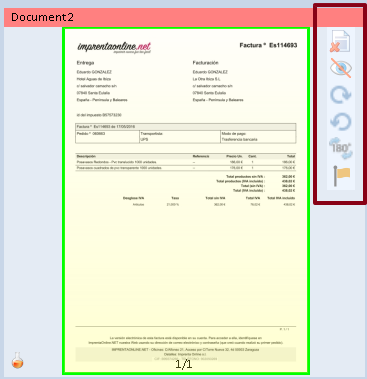
You can fully customize your quick action menu per job:
-
Enable only the actions your users need.
-
Example above: Only the most relevant actions for this process are active; others are hidden for clarity.
Section: Customize Page Actions (OnMouseOver)
This end-user feature lets you tailor which actions appear when hovering your mouse over a page thumbnail, ensuring rapid access to the functions you use the most.
Do not forget to save your changes after customizing!