When ChronoScan starts it shows the start screen, also called the Launcher. From here you choose which configuration to open and how:
Configurations: the list of ChronoScan configurations found on the computer (the default one in C:\ProgramData\ChronoScan and any additional ChronoScan.name folder, including configurations redirected to another computer). Each one keeps its own jobs, batches and settings. See Using Multiple Launch Configurations.
Start: opens the selected configuration. The last edited batch can be opened directly, and the summary shows the directories of the configuration (jobs, batches, output) as links that open them in the explorer.
Start parameters: run the configuration with command-line options (for example in HotFolder mode, in user mode or with a custom interface). See Executing ChronoScan on Command line.
License Manager and HUB: install or review licenses and sign in to the ChronoScan HUB, where licenses, maintenance and AI credits are managed. See License Manager.
Documentation and support: links to the online manuals.
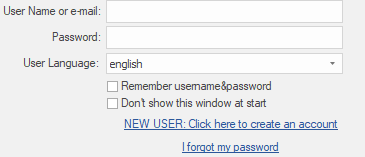
NOTE: earlier versions showed a welcome window with user login and registration (ChronoScan Network). That service has been retired; the annotated screenshot below corresponds to that old window and will be replaced.
User Login and Registration
If you have a license and have created an account, put in your login details.
You can also recover your password or created a new account.